
OctoBot

OctoBot
- Version: 2.0.10+
- OS: Ubuntu 22.04
- Category: Developer Tools
Description
OctoBot is a free, open-source cryptocurrency trading robot. It enables you to create, backtest, and optimize automated trading strategies using technical indicators, AI-driven signals, or TradingView automations. OctoBot supports SPOT and Futures markets across more than 12 exchanges and runs entirely on your own VPS, giving you full control over your strategy and data.
Software Included
| Package | Version | License |
|---|---|---|
| OctoBot | 2.0.10+ | GPL 3.0 |
| Docker | 25.0.4 | Apache 2.0 |
| Docker Compose | 2.25.0 | Apache 2.0 |
| fail2ban | 1.0.2 | GPL 2.0 |
Key Features
- Automate cryptocurrency trading strategies without coding
- Backtest strategies against historical market data
- Simulate trades before using real funds
- Supports technical indicators (TA), AI predictions, and TradingView webhooks
- Compatible with 12+ major exchanges (SPOT and Futures)
- Web-based interface for configuration and monitoring
- Open-source with an active community
Getting Started
1. Deploy OctoBot on an EasyCloudify VPS
Deploy this app from the EasyCloudify Marketplace. Once the VPS is ready, access the OctoBot web interface in your browser at:
http://your-vps-ip
2. Choose Your Strategy
OctoBot supports several pre-configured trading modes. You can:
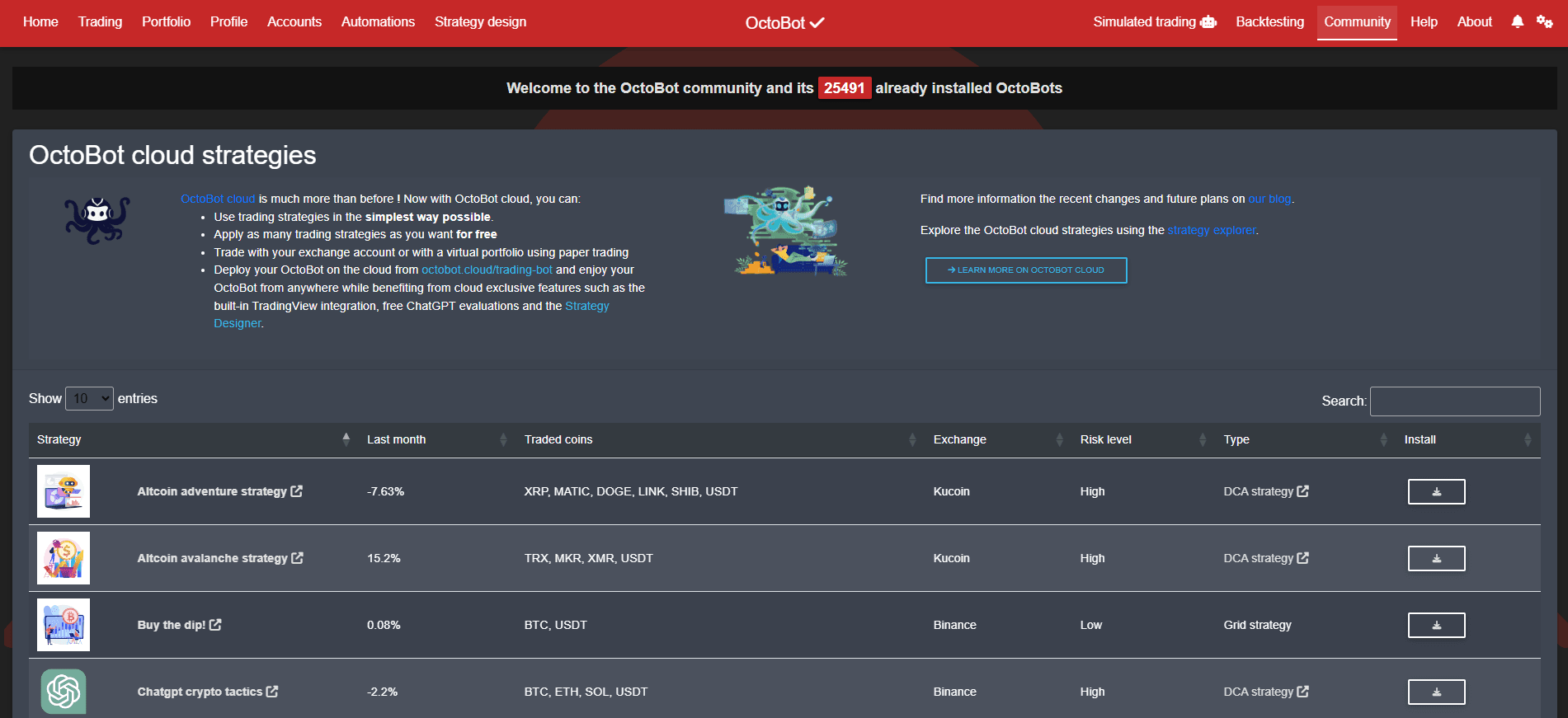
- Select a pre-built strategy from the OctoBot community at https://www.octobot.cloud/en/guides/octobot-trading-modes/trading-modes
- Or customize a built-in strategy to match your own logic
3. Choose Your Exchange
Connect OctoBot to your preferred cryptocurrency exchange. OctoBot officially supports Binance, Bybit, Coinbase, OKX, Kraken, and many others. Select your exchange from the OctoBot web interface and enter your exchange API keys.
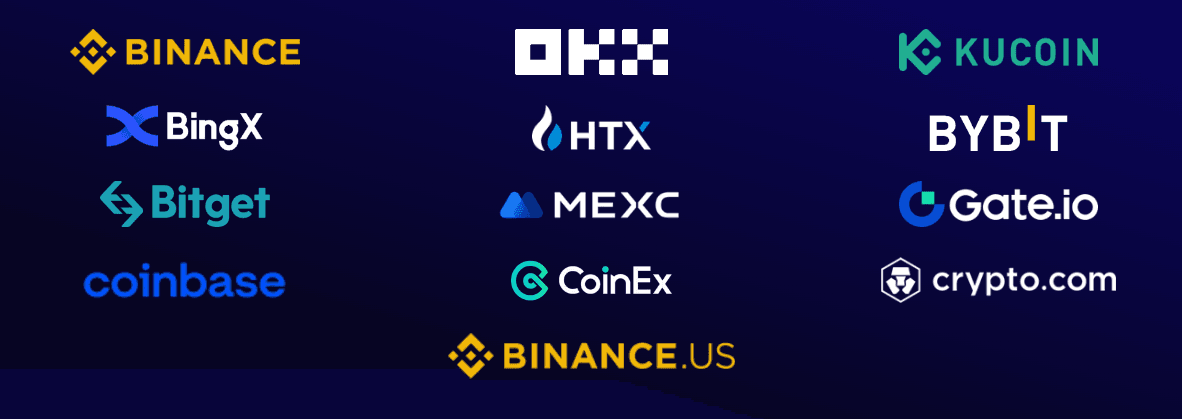
See all supported exchanges: https://www.octobot.cloud/en/guides/exchanges
4. Test Your Strategy
Before using real funds, validate your strategy using one of two methods:
- Simulation mode — OctoBot simulates trades using the same logic as live trading, but with virtual funds.
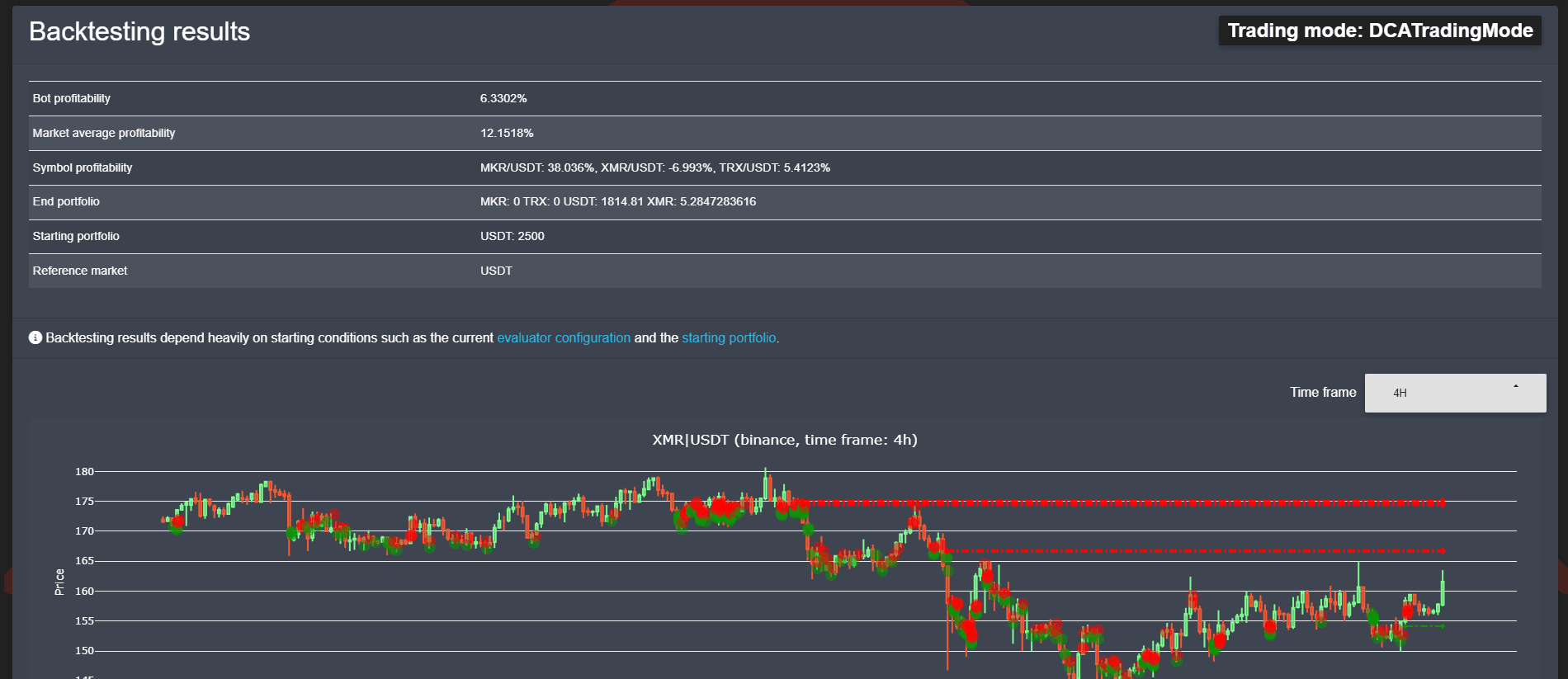
- Backtesting — Test your strategy against recorded historical market data to evaluate its past performance.
Both modes are accessible from the OctoBot web interface under the Trading section.
5. Go Live
Once satisfied with your strategy's performance, add your exchange API keys under Configuration > Accounts and switch OctoBot to real trading mode.
Managing OctoBot
Check container status:
bashdocker ps
View OctoBot logs:
bashdocker logs -f octobot
Restart OctoBot:
bashdocker restart octobot
Update OctoBot to the latest version:
bashdocker pull drakkarsoftware/octobot docker-compose up -d
Important Notes
- Never share your exchange API keys. Store them only within OctoBot's configuration interface.
- Start with simulation mode to validate your strategy before committing real funds.
- Back up your OctoBot configuration and profile data regularly.
Support Details
- Supported By: Drakkar-Software
- Support URL: https://www.octobot.cloud
- Support Email: [email protected]
Resources
- OctoBot Cloud: https://www.octobot.cloud
- Guides: https://www.octobot.cloud/en/guides/octobot
- Blog: https://www.octobot.cloud/en/blog
- Source Code: https://github.com/Drakkar-Software/OctoBot