
Appwrite
Appwrite
Vendor: Appwrite Version: 1.7 OS: Ubuntu 22.04 Category: Developer Tools License: BSD 3-Clause
Description
Appwrite is a secure, open-source backend that abstracts the complexity of common, complex, and repetitive tasks required for building a modern app.
Appwrite provides you with a set of secure APIs, tools, and a management console UI to help you build your apps quickly without compromising security. Use Appwrite to add user authentication and management, data and file storage, run server-side code, image manipulation, localization, and more into your apps.
Appwrite adapts to your unique habits and needs. You can integrate Appwrite directly with your client app or use it alongside your existing backend server, using the language and technologies you are most comfortable with.
Software Included
- Package: Appwrite
- Version: 1.7
- License: BSD 3-Clause (available on GitHub)
Getting Started After Deploying Appwrite
Once the deployment is complete, you can access Appwrite in your browser using the IP address of the server. Below are some recommended setups before accessing Appwrite.
Get a Domain Name (Recommended)
Set up DNS for your server. You will first need to purchase and register your domain through a third party, such as Name.com, GoDaddy, or any other registrar.
Why do you need a domain name?
You can access your Appwrite server using a secured SSL connection with the domain correctly set up. You can, however, still access your server using the IP address. We still recommend having a valid domain.
Set Up SMTP (Recommended)
If you want to use the emailing service of Appwrite, you will need to get SMTP credentials for sending emails. This can be from an email delivery service like SparkPost, Sendgrid, or EasyCloudify App emails, or similar. Using the email delivery guide, you can easily set up your email provider to work with Appwrite.
Why do you need SMTP?
Appwrite uses SMTP to send verification emails to users signing up for your project, send emails for URL-based login, and use email to reset passwords for console admin and project users. Without enabling an SMTP provider, you will not be able to use email verification or magic URL login in your applications.
Connect to Object Storage (Wasabi, Linode, Backblaze, EasyCloudify Object Storage, or other S3-compatible storage) (Optional)
You will need access credentials for your preferred storage system. Look at the storage environment variables to set up one of the supported object storage providers.
Why do I need object storage?
These buckets are used to store files by the Appwrite storage service. Without object storage, you can use your local file system, which can be slow and overloaded quickly.
Creating Your First Project
In your browser, type in the domain name you have set up or the IP address of your server, and you should be presented with a login or signup page. You can get to the signup page by clicking on the Sign Up button.
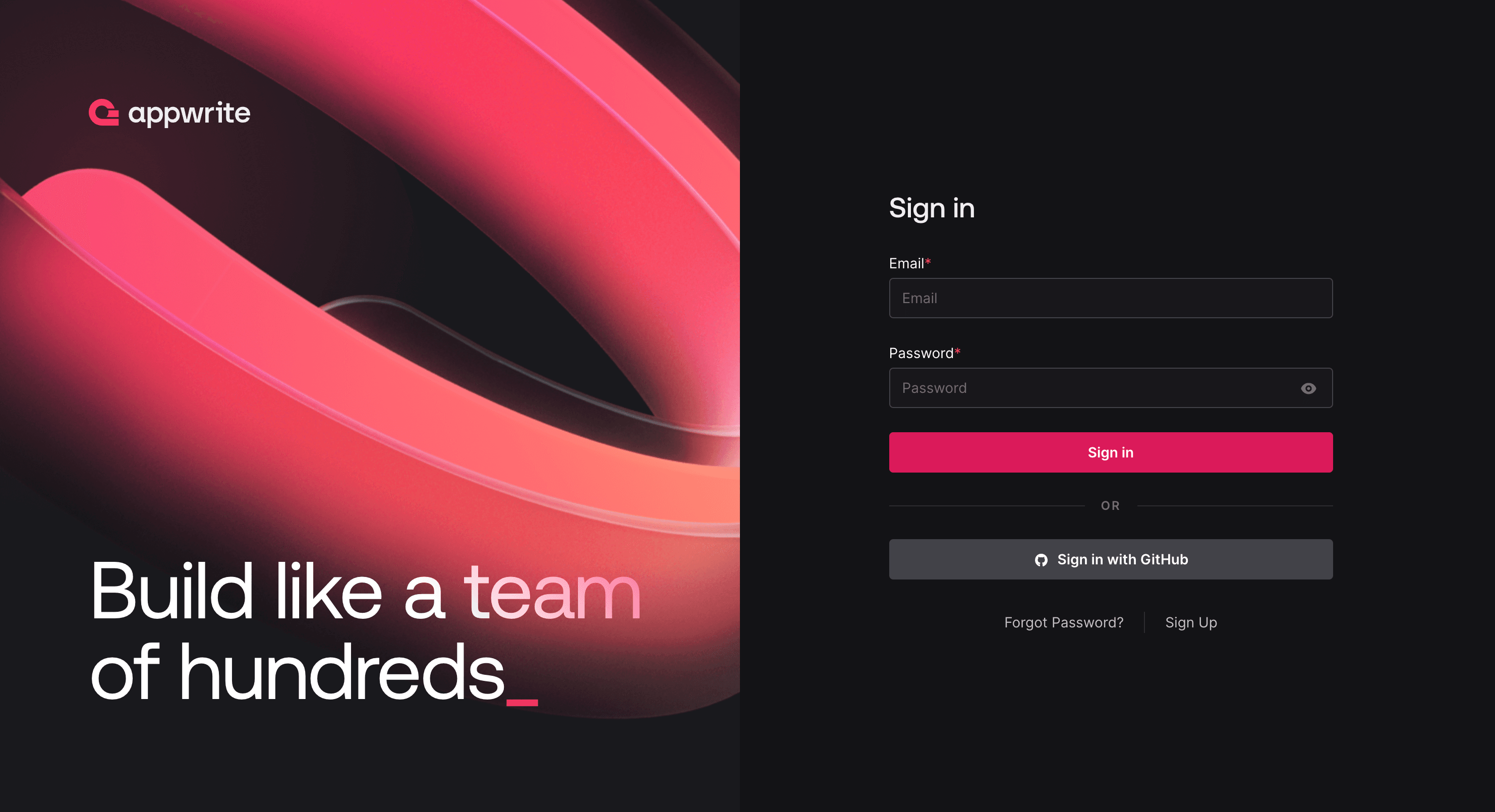
Provide your details and sign up. The account you create will be the root account for managing your Appwrite server. Once you sign up, you will be redirected and presented with a dialog to create your first project. Enter the name and optional custom ID and click the Create Project button.
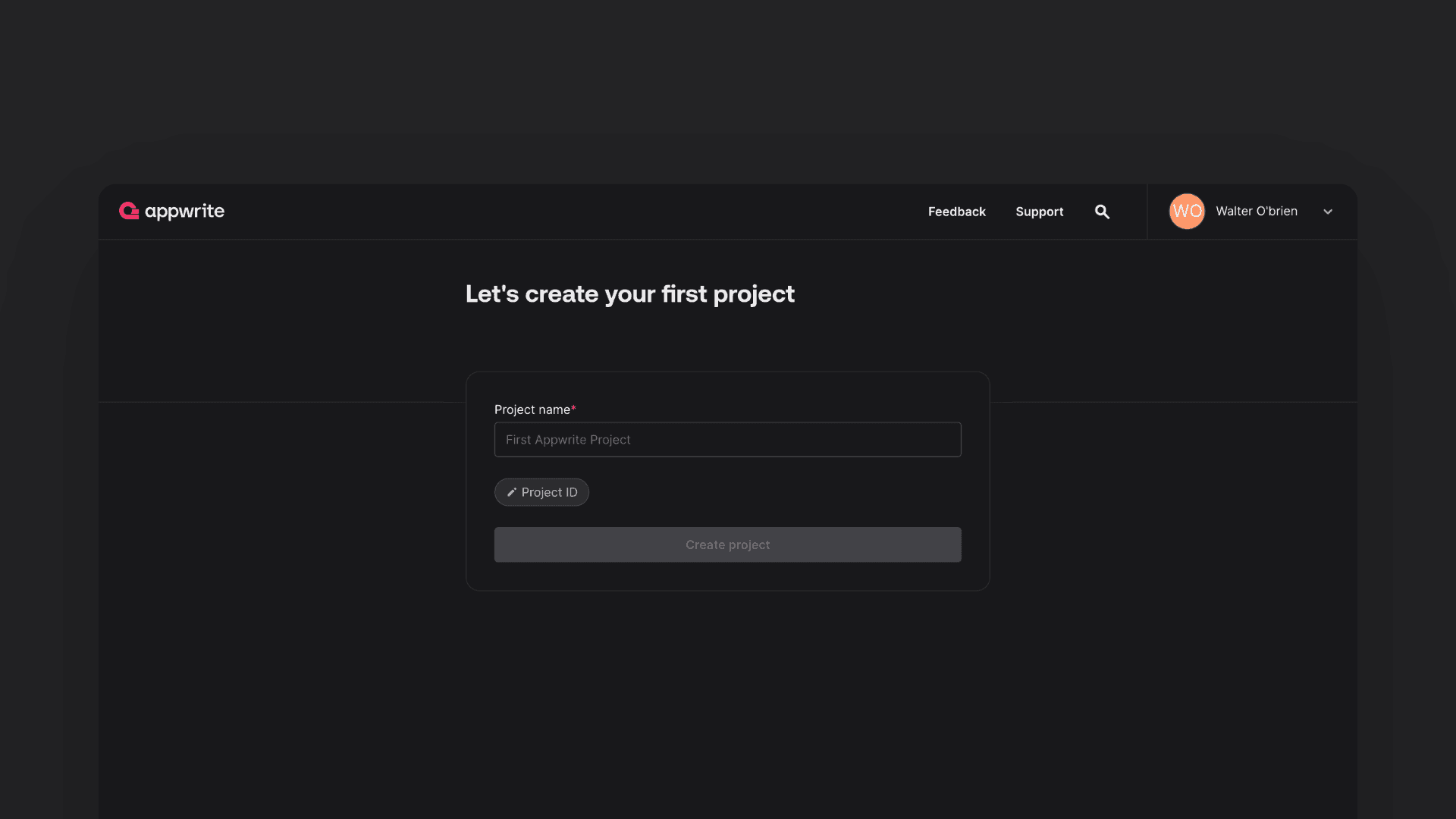
You will then be redirected to the project overview page, where you can set up your project further to connect with your applications, set up databases, storage, and more.
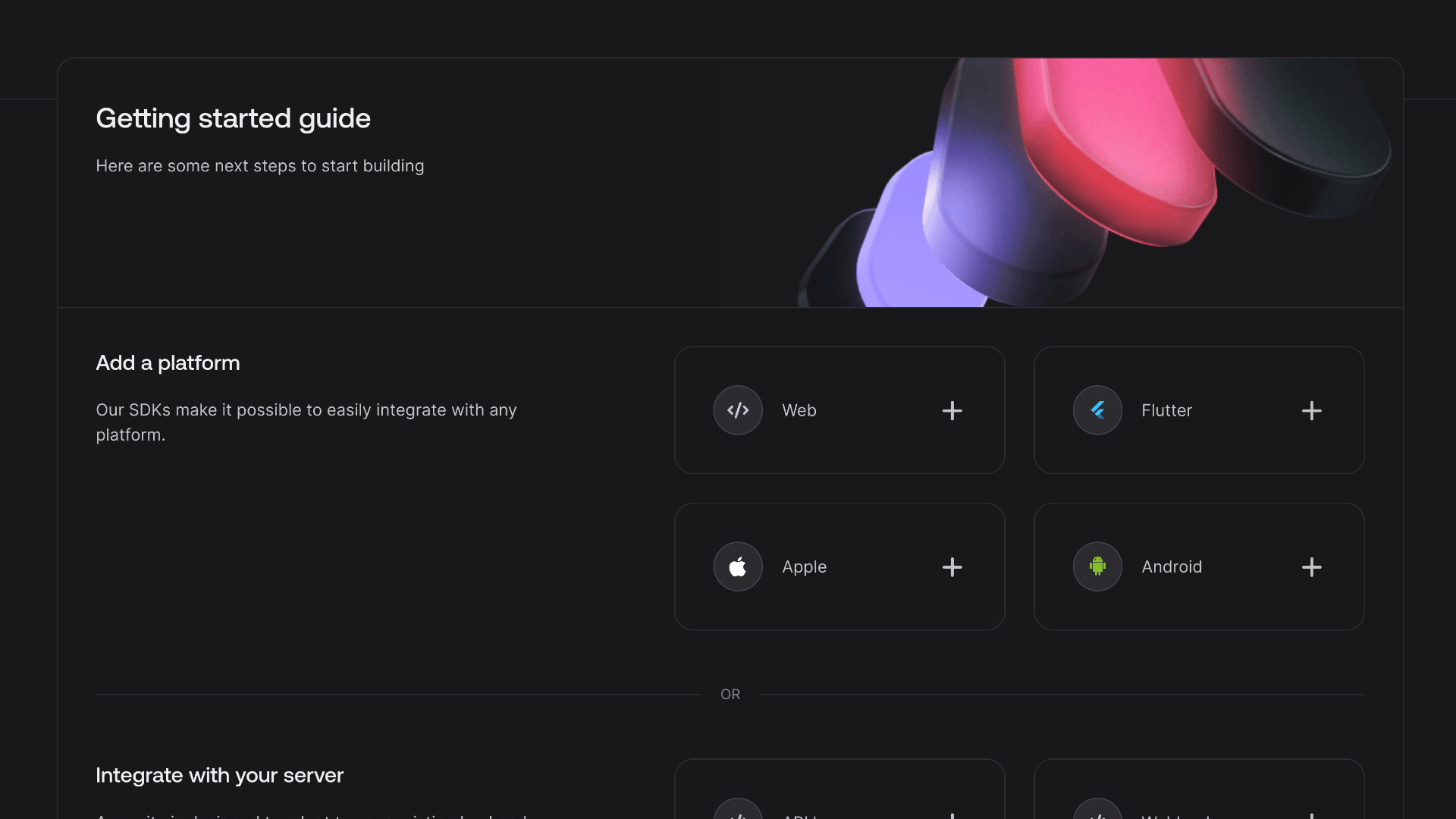
Now that you have created your project, you can follow one of the getting started guides below to build your application with Appwrite:
- Getting started for Web
- Getting started for Flutter
- Getting started for Android
- Getting started for Apple
- Getting started for Server
Optional: Configure Environment Variables
Optionally, you can configure the environment variables manually. To do that, you must SSH into the server you created. You will find your environment file in /root/appwrite/.env. You can open it in a text editor and update any available environment variables of your choice. You can learn about all the available variables in the environment variables guide.
Debugging
If you run into issues on your server, you can follow the debugging guide to troubleshoot.
Getting Help
Support Details
- Supported By: Appwrite
- Hours: SUN - FRI, 10 AM - 5 PM
- Support URL: https://appwrite.io
- Support Email: [email protected]